
How to Use mp4loom: pixel: Make Your First Pixel Music Video
mp4loom: pixel turns an MP3 on your phone into an isometric pixel-art MP4 where the scene moves with the music. Everything is rendered on your device. This guide takes you from install to your first saved video.

What You Need
- An Android phone running Android 10 or newer.
- A song saved on the phone as an MP3 file.
- Some free storage space for the finished video.
Install mp4loom: pixel
- On your Android phone, open the mp4loom: pixel page and tap Download APK (version 1.0.38, 529 KB).
- Open the downloaded file. If prompted, allow Install unknown apps for your browser (how to).
- Tap Install, then open mp4loom: pixel.
Had mp4loom: pixel 1.0.37? Version 1.0.38 is a new app with its own Android app ID, not an update, so it installs next to 1.0.37. Uninstall 1.0.37 after installing 1.0.38. Pixel 1.0.37 shares an app ID with the classic mp4loom app, so mp4loom 1.0.33 can’t be installed until 1.0.37 is gone. Pixel 1.0.38 and mp4loom 1.0.33 can be installed side by side.
Make Your First Video
-
01
Choose your MP3
Open mp4loom: pixel. In the SOURCE section, tap Choose MP3 and pick a song with Android’s file picker. The app notes: “The track never leaves this device.”
Tracks longer than 2:00 render the first two minutes.
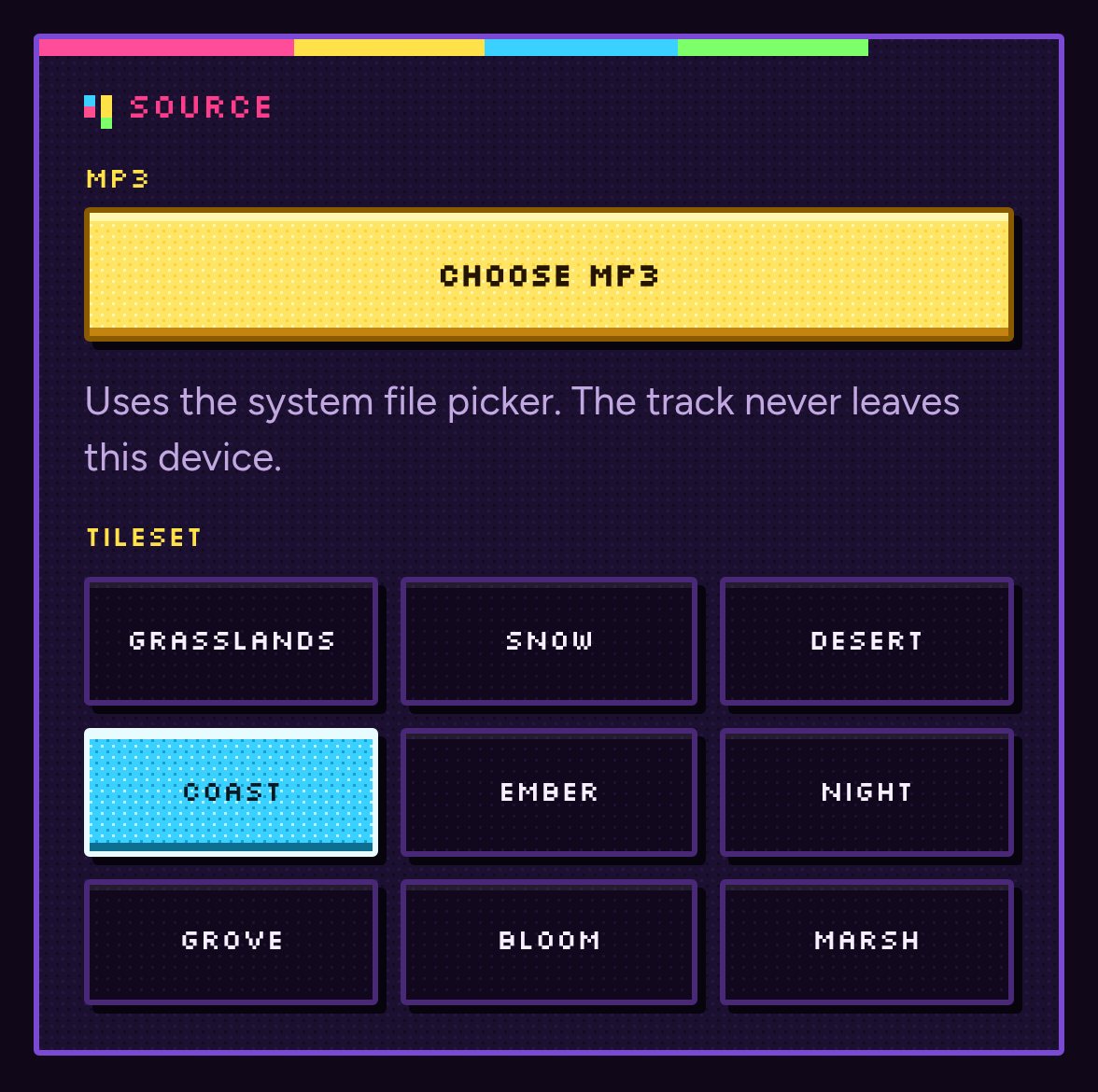
The SOURCE section: Choose MP3, then a tileset. -
02
Pick a tileset
Under TILESET, tap one of the nine looks for the ground and sky: Grasslands, Snow, Desert, Coast, Ember, Night, Grove, Bloom or Marsh. The preview changes straight away.
-
03
Pick a visual style
In VISUAL STYLE, tap one of the ten scenes. The line under the grid explains what each one does with the music. For example, Equalizer Bars is “A 5×5 isometric grid. Each tile is a bar, and the near row thumps on the kick,” and Island is “An island in the tileset water. The kick leans the palms, drops a nut, and opens the chest.”
The other styles are Orbit Beacons, Jump Man, Chef, Wave, Farmer, Burst, Parrot and Surf. The app remembers your last tileset and style.
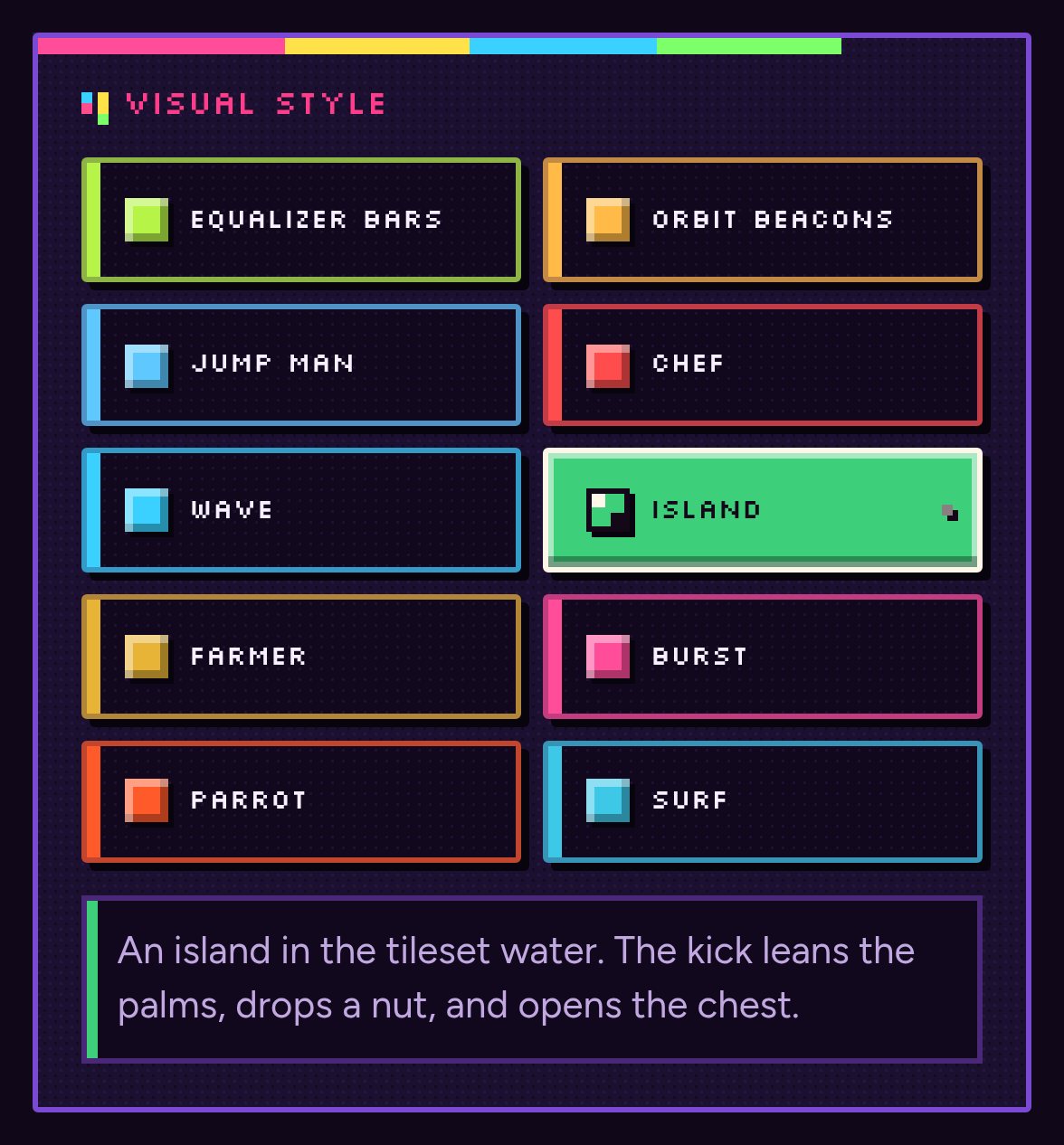
Ten visual styles. The description under the grid matches the one you tapped. -
04
Preview it
The SCREEN at the top shows the scene, with the style name in the corner. Tap Play to hear your song and watch the scene move with it. Before you choose a song, the screen runs a demo.
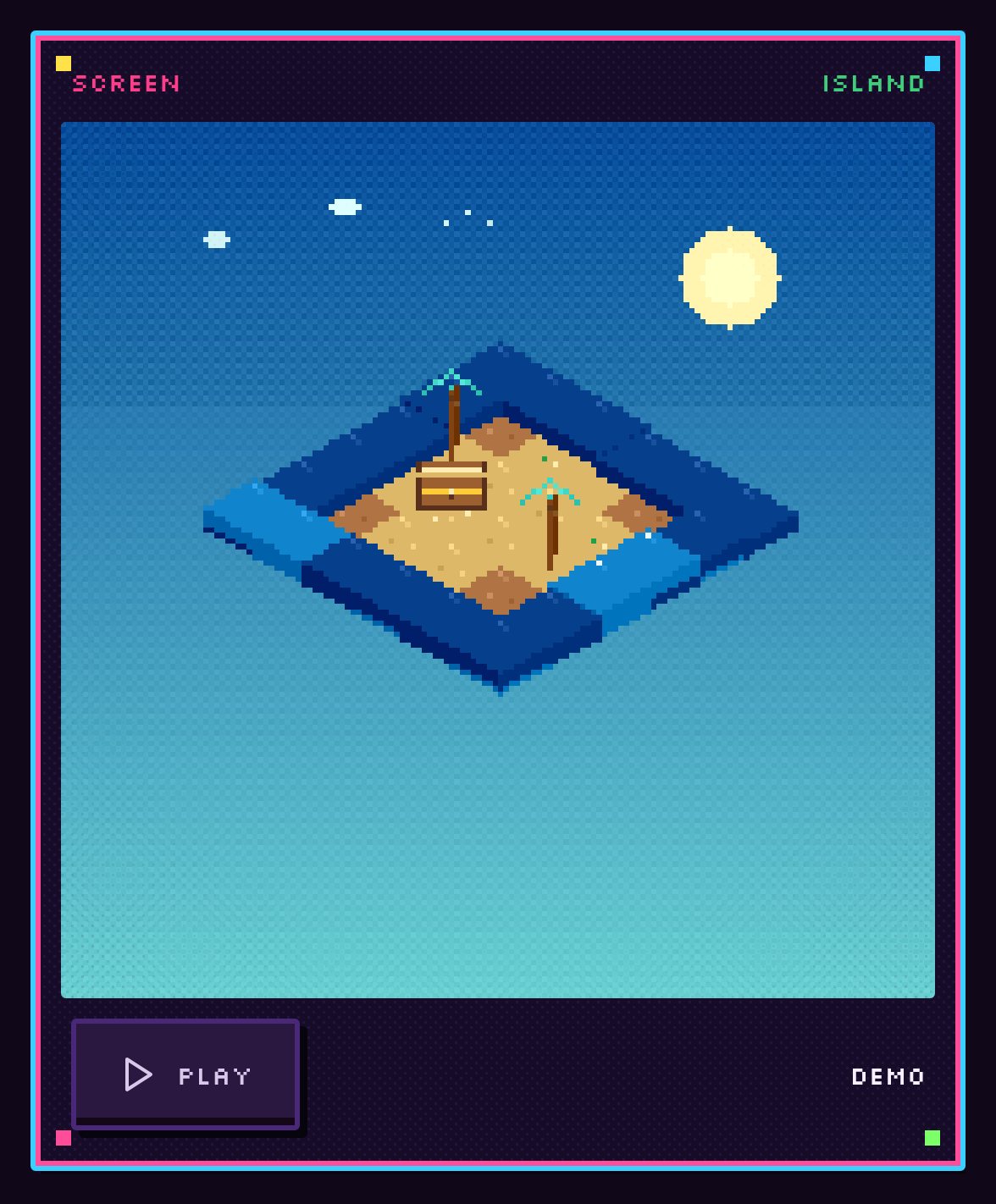
The live preview, here Island on the Coast tileset. -
05
Render your MP4
In the RENDERER section, tap Render Pixel MP4. On a phone the video is 480×480, and the app notes that the render stays on the device. The progress bar and the frame … / … counter show how far along it is. Tap Stop if you need to cancel.
If the app asks to send notifications, that is optional. It shows a notification while it packs the MP4.
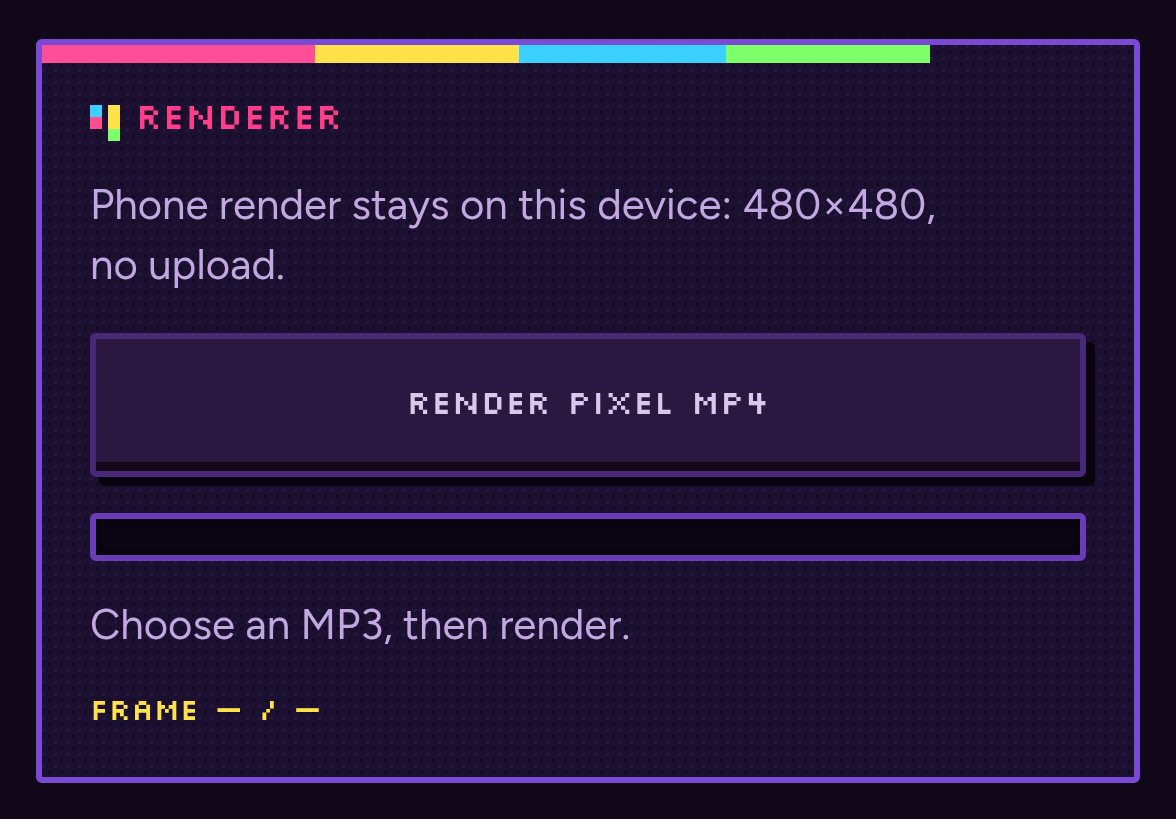
The RENDERER section before a render. -
06
Save and share
When the render finishes, the video appears in the app so you can play it back. Tap Save MP4 to save it to your phone’s Downloads folder as mp4loom-pixel.mp4. Open it from your files or gallery app and share it wherever you like.
Tips
- Play the preview first so you can see how your tileset and style move with the song before rendering.
- Pick the part of the song you want before you start: only the first two minutes of longer tracks are rendered.
- Rendering uses your phone’s processor and battery. Plug in if your battery is low.
- Only use tracks you have the right to convert.
- Everything stays on your phone. mp4loom: pixel has no internet access, account or tracking.
Troubleshooting
It says it couldn’t read my file as an MP3.
The app shows “Couldn't read that as an MP3. Pick another file from this device.” Choose a different MP3 file.
It says the device can’t encode an MP4.
mp4loom: pixel uses your phone’s built-in MP4 encoder through Android’s WebView. The preview still works, but export needs a current Android System WebView. Update Android System WebView and Chrome from the Play Store and try again.
Playback didn’t start.
The app says “Playback didn't start. Tap Play once more.” Tap Play again.
Where did my video go?
After you tap Save MP4, look in the Downloads folder on your phone for mp4loom-pixel.mp4.
How do I update mp4loom: pixel?
Download the newest APK from the mp4loom: pixel page and install it. If you are moving from 1.0.37 to 1.0.38, install 1.0.38 and then uninstall 1.0.37: 1.0.38 has a new app ID, so it doesn’t replace 1.0.37 on its own.